TrueRental Developer Guide
Table of Contents
Acknowledgements
This project is built on top of AddressBook-Level3 Project. Special thanks and appreciation for the team of AddressBook-Level 3.
ChatGPT was used to create the TrueRental application logo, as well as for debugging and documentation purposes only.

Setting up, getting started
Setting up the project in your computer
Caution: Follow the steps in the following guide precisely. Things will not work out if you deviate in some steps.
First, fork this repo, and clone the fork into your computer.
If you plan to use Intellij IDEA (highly recommended):
- Configure the JDK: Follow the guide [se-edu/guides] IDEA: Configuring the JDK to ensure Intellij is configured to use JDK 17.
- Import the project as a Gradle project: Follow the guide [se-edu/guides] IDEA: Importing a Gradle project to import the project into IDEA.Note: Importing a Gradle project is slightly different from importing a normal Java project.
- Verify the setup:
- Run the
seedu.address.Mainand try a few commands. - Run the tests to ensure they all pass.
- Run the
Running Tests
There are two ways to run tests.
- Method 1: Using IntelliJ JUnit test runner
- To run all tests, right-click on the
src/test/javafolder and chooseRun 'All Tests' - To run a subset of tests, you can right-click on a test package,
test class, or a test and choose
Run 'ABC'
- To run all tests, right-click on the
- Method 2: Using Gradle
- Open a console and run the command
gradlew clean test(Mac/Linux:./gradlew clean test)
- Open a console and run the command
Link: Read this Gradle Tutorial from the se-edu/guides to learn more about using Gradle.
Before writing code
Configure the coding style
If using IDEA, follow the guide [se-edu/guides] IDEA: Configuring the code style to set up IDEA's coding style to match ours.
Tip: Optionally, you can follow the guide [se-edu/guides] Using Checkstyle to find how to use the CheckStyle within IDEA e.g., to report problems as you write code.
Set up CI
This project comes with a GitHub Actions config files (in
.github/workflowsfolder). When GitHub detects those files, it will run the CI for your project automatically at each push to themasterbranch or to any PR. No set up required.Learn the design
When you are ready to start coding, we recommend that you get some sense of the overall design by reading about TrueRental’s architecture.
Design
Architecture
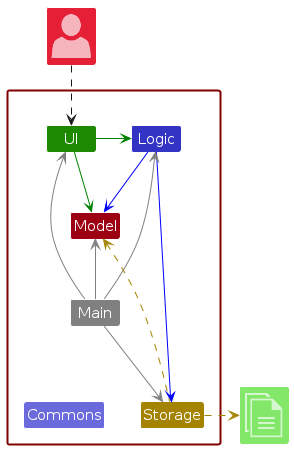
The Architecture Diagram given above explains the high-level design of the application.
Given below is a quick overview of main components and how they interact with each other.
Main components of the architecture
Main (consisting of
classes Main
and MainApp) is
in charge of the application launch and shut down.
- At application launch, it initializes the other components in the correct sequence, and connects them up with each other.
- At shut down, it shuts down the other components and invokes cleanup methods where necessary.
The bulk of the app's work is done by the following four components:
UI: The UI of the App.Logic: The command executor.Model: Holds the data of the application in memory.Storage: Reads data from, and writes data to, the hard disk.
Commons represents a collection of classes used by multiple other components.
How the architecture components interact with each other
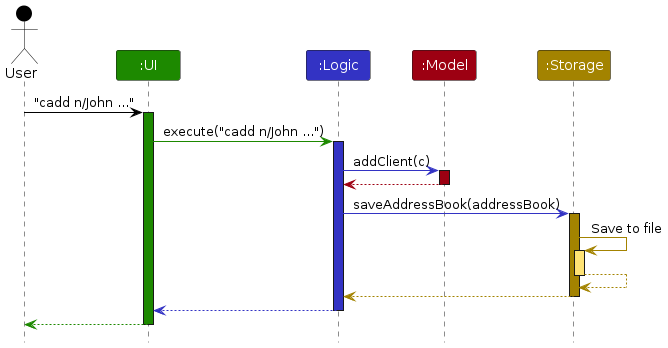
The Sequence Diagram below shows how the components interact with each other for the scenario where the user issues
the command cadd n/John ... (details of command are omitted).
Each of the four main components (also shown in the diagram above),
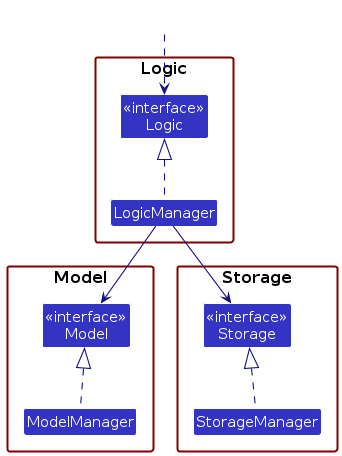
- defines its API in an
interfacewith the same name as the Component. - implements its functionality using a concrete
{Component Name}Managerclass (which follows the corresponding APIinterfacementioned in the previous point.
For example, the Logic component defines its API in the Logic.java interface and implements its functionality using
the LogicManager.java class which follows the Logic interface. Other components interact with a given component
through its interface rather than the concrete class (reason: to prevent outside component's being coupled to the
implementation of a component), as illustrated in the (partial) class diagram below.
The sections below give more details of each component.
UI component
The API of this component is specified
in Ui.java
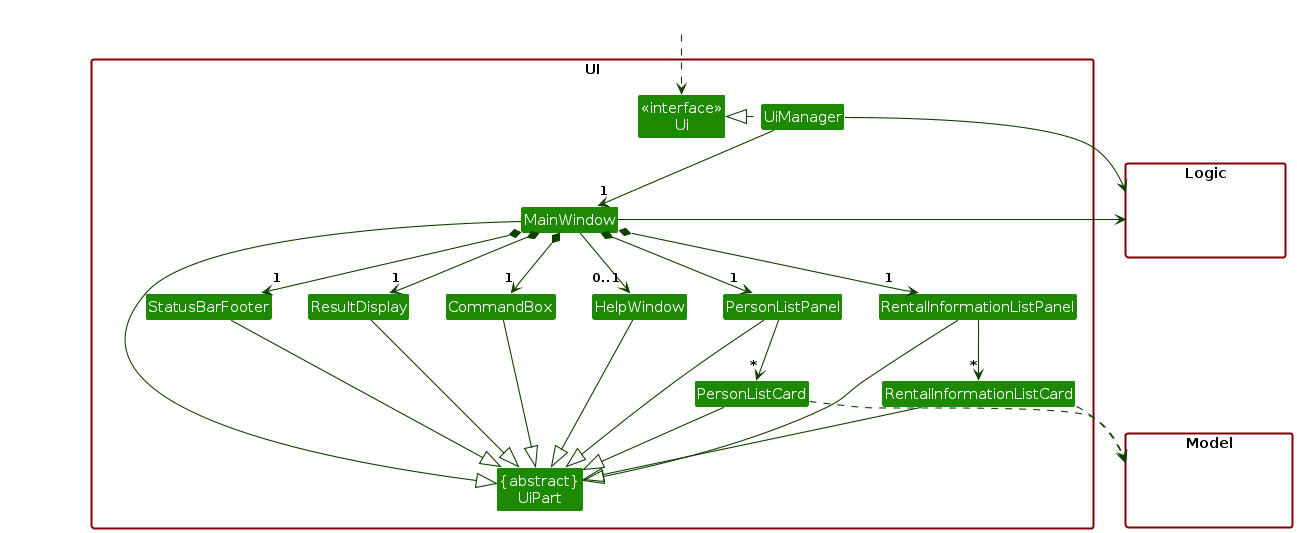
The UI consists of a MainWindow that is made up of parts
e.g.CommandBox, ResultDisplay, PersonListPanel, StatusBarFooter etc. All these, including the MainWindow,
inherit from the abstract UiPart class which captures the commonalities between classes that represent parts of the
visible GUI.
The UI component uses the JavaFx UI framework. The layout of these UI parts are defined in matching .fxml files that
are in the src/main/resources/view folder. For example, the layout of
the MainWindow
is specified
in MainWindow.fxml
The UI component,
- executes user commands using the
Logiccomponent. - listens for changes to
Modeldata so that the UI can be updated with the modified data. - keeps a reference to the
Logiccomponent, because theUIrelies on theLogicto execute commands. - depends on some classes in the
Modelcomponent, as it displaysPersonobject residing in theModel.
Logic component
API :
Logic.java
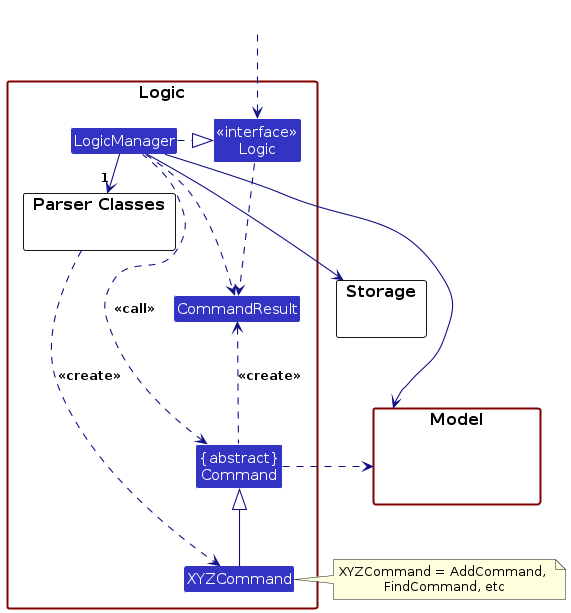
Here's a (partial) class diagram of the Logic component:
The sequence diagram below illustrates the interactions within the Logic component, taking execute("rview 1") API
call as an example.
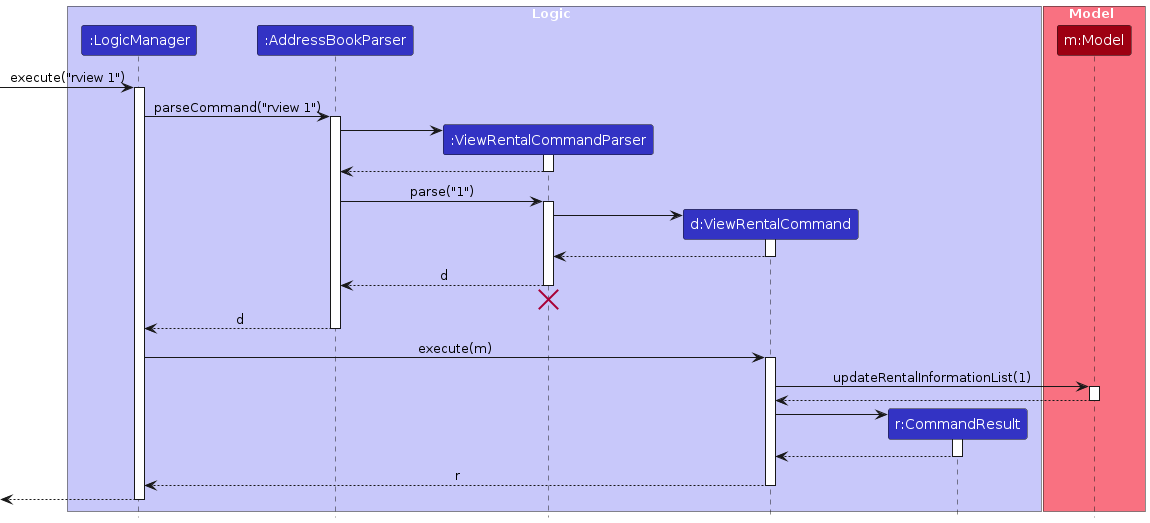
Note: The lifeline for ViewRentalCommandParser should end at the destroy marker (X) but due to a limitation of
PlantUML, the lifeline continues till the end of diagram.
The sequence diagram below illustrates the interactions within the Logic component,
taking execute("cadd n/John Doe p/91231231 e/john@example.com") API call as an example.
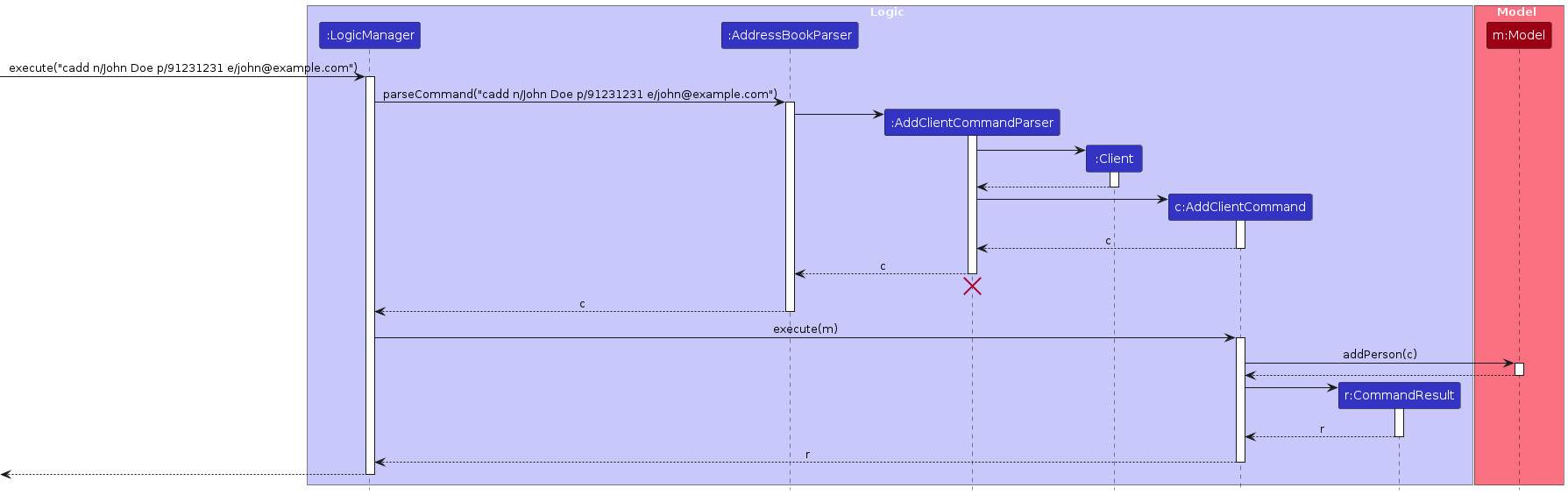
Note: The lifeline for AddClientCommandParser should end at the destroy marker (X) but due to a limitation of
PlantUML, the lifeline continues till the end of diagram.
How the Logic component works:
- When
Logicis called upon to execute a command, it is passed to anAddressBookParserobject which in turn creates a parser that matches the command (e.g.,DeleteClientCommandParser) and uses it to parse the command. - This results in a
Commandobject (more precisely, an object of one of its subclasses e.g.,DeleteClientCommand) which is executed by theLogicManager. - The command can communicate with the
Modelwhen it is executed (e.g. to delete a client).
Note that although this is shown as a single step in the diagram above (for simplicity), in the code it can take several interactions (between the command object and theModel) to achieve. - The result of the command execution is encapsulated as a
CommandResultobject which is returned back fromLogic.
Here are the other classes in Logic (omitted from the class diagram above) that are used for parsing a user command:
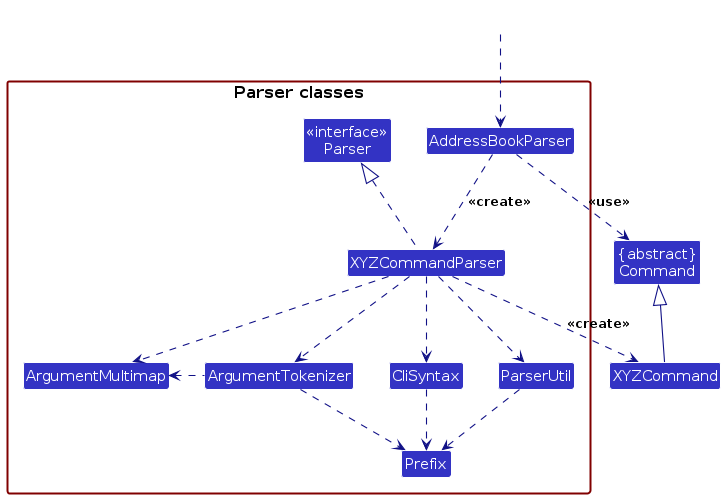
How the parsing works:
- When called upon to parse a user command, the
AddressBookParserclass creates anXYZCommandParser(XYZis a placeholder for the specific command name e.g.,AddCommandParser) which uses the other classes shown above to parse the user command and create aXYZCommandobject (e.g.,AddCommand) which theAddressBookParserreturns back as aCommandobject. - All
XYZCommandParserclasses (e.g.,AddCommandParser,DeleteClientCommandParser, ...) inherit from theParserinterface so that they can be treated similarly where possible e.g, during testing.
Model component
API :
Model.java
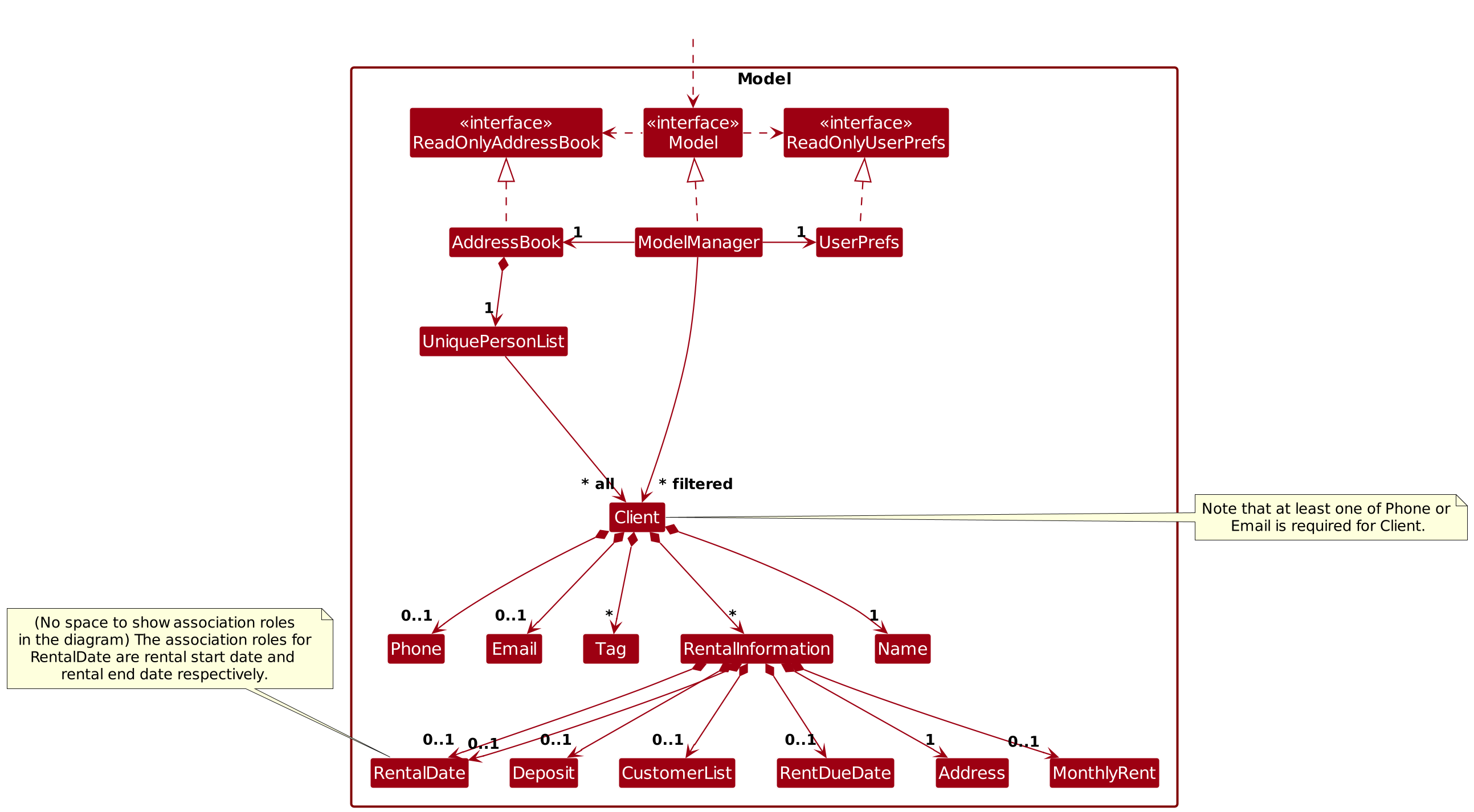
The Model component,
- stores the address book data i.e., all
Personobjects (which are contained in aUniquePersonListobject). - stores the currently 'selected'
Personobjects (e.g., results of a search query) as a separate filtered list which is exposed to outsiders as an unmodifiableObservableList<Person>that can be 'observed' e.g. the UI can be bound to this list so that the UI automatically updates when the data in the list change. - stores a
UserPrefobject that represents the user’s preferences. This is exposed to the outside as aReadOnlyUserPrefobjects. - does not depend on any of the other three components (as the
Modelrepresents data entities of the domain, they should make sense on their own without depending on other components)
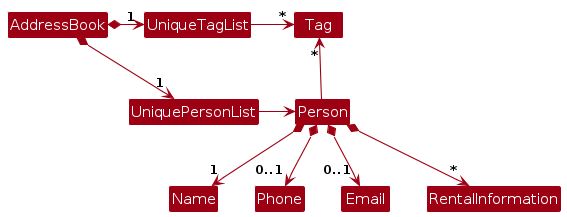
Note: An alternative (arguably, a more OOP) model is given below. It has a Tag list in the AddressBook,
which Person references. This allows AddressBook to only require one Tag object per unique tag, instead of
each Person needing their own Tag objects.
Storage component
API :
Storage.java
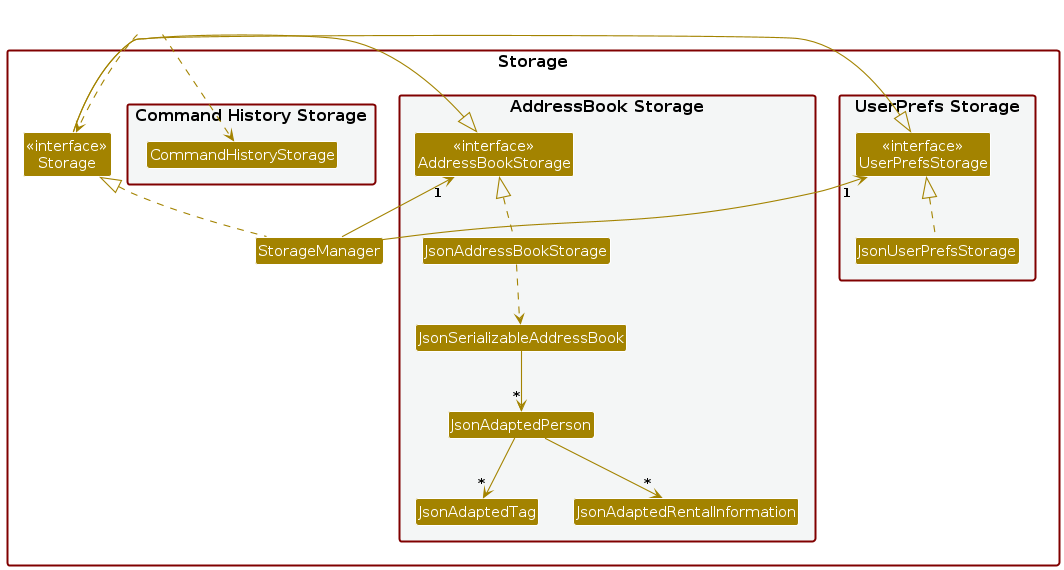
The Storage component,
- can save both TrueRental's data and user preference data in JSON format, and read them back into corresponding objects.
- inherits from both
AddressBookStorageandUserPrefStorage, which means it can be treated as either one (if only the functionality of only one is needed). - depends on some classes in the
Modelcomponent (because theStoragecomponent's job is to save/retrieve objects that belong to theModel). - has a separate portion to store the current session's command history into a text file.
Common classes
Classes used by multiple components are in the seedu.address.commons package.
Implementation
This section describes some noteworthy details on how certain features are implemented.
Confirmation prompts
Some commands such as clear, cdelete and rdelete prompts the user for confirmation.
How confirmation prompts work:
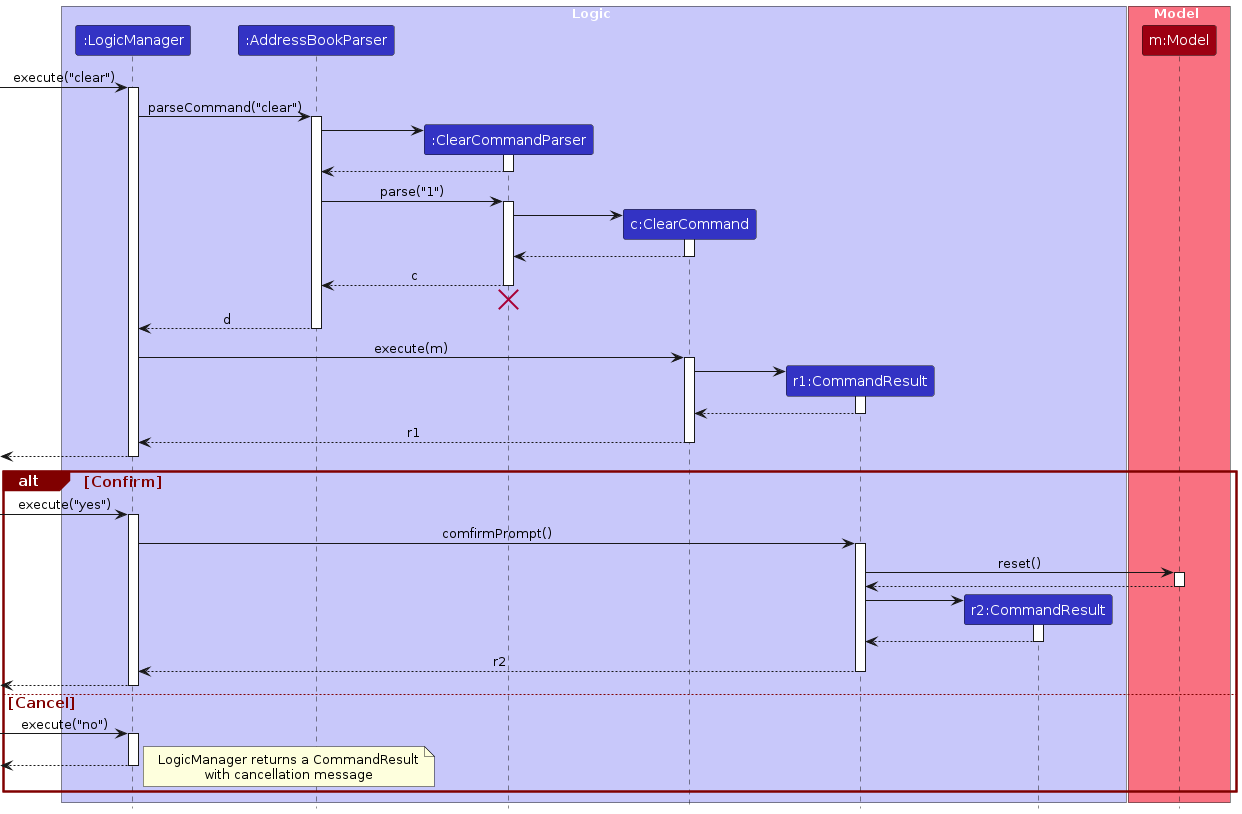
- The
CommandResultclass now has different types:ORDINARY: A regular result, representing a command's success.SHOW_HELP: The help window should be shown to the user.EXIT: The app should exit.PROMPT: The app should prompt the user for confirmation.
- There is a new
Supplier<CommandResult>field in theCommandResultclass, which will be applied when the user confirms the prompt. - In commands that will prompt for confirmation, the
executemethod returns aCommandResultthat contains an additionalSupplier<Command>and prompt message. - The
LogicManagerdetects if the result of a command is of the typePROMPT, and enters a state where it waits for a confirmation. LogicManageralso keeps track of the most recentCommandResult. When a confirmation is obtained, it will apply the supplier in the previousCommandResult.
The sequence diagram below illustrates the interactions involved in confirmation prompts, taking the command clear
as an example:
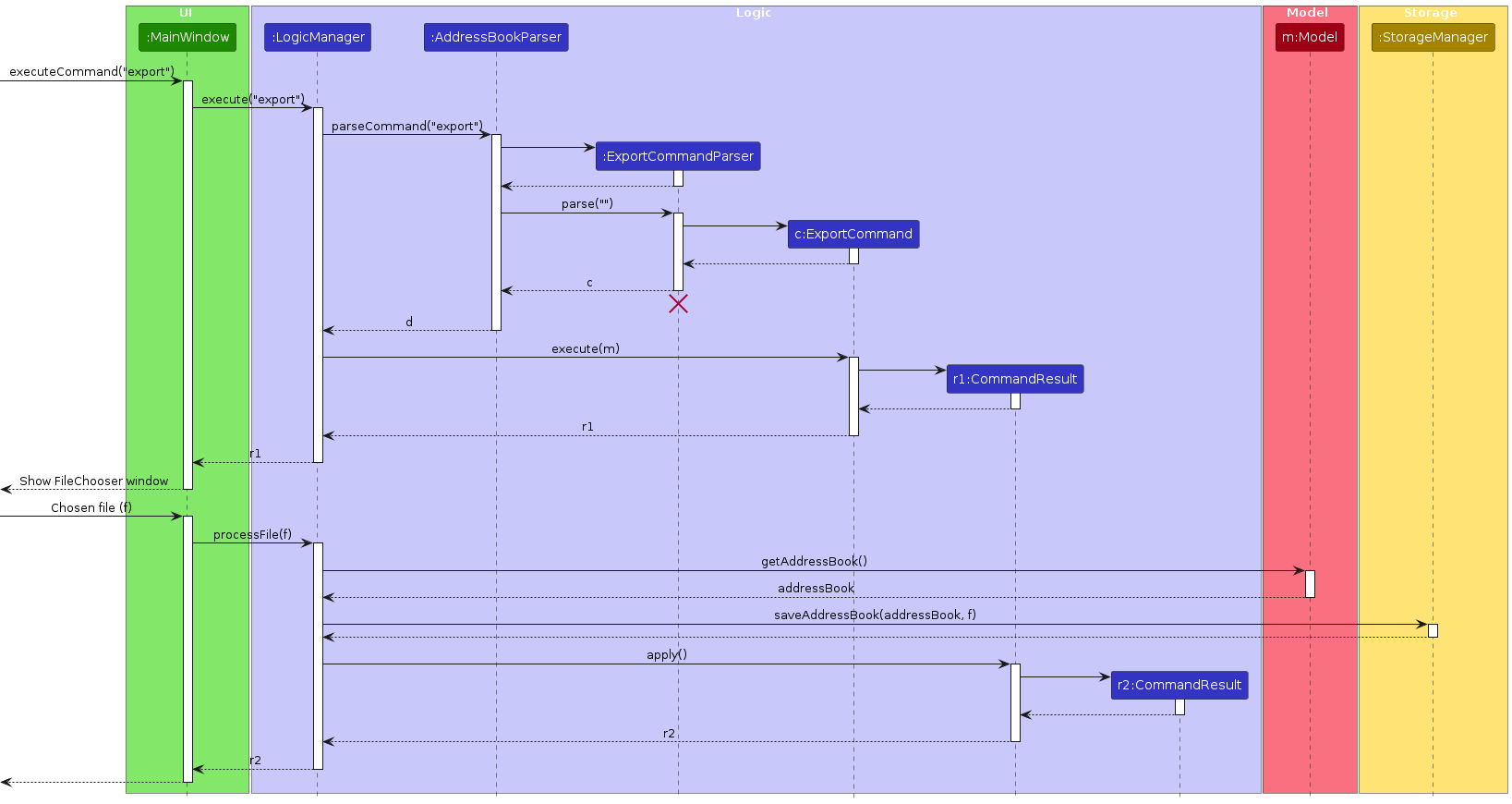
Importing and Exporting data
The user is able to import data from and export data to external files.
How import and export work:
- A
FileChooserresides in theMainWindowcontainer. - The
CommandResultclass now has two new types:IMPORT: TheFileChooserwindow should be shown to the user to choose a file for import.EXPORT: TheFileChooserwindow should be shown to the user to choose a file for export.
CommandResultof the above types store an extraSupplier<CommandResult>that will be applied if import or export was successful.- The
MainWindowdetects if a result returned byLogicManageris of typeIMPORTorEXPORT, and shows the correctFileChooserwindow based on the type. - After the user chooses a file,
MainWindowpasses the file toLogicManagerby calling theprocessFilemethod. LogicManagerpasses the file to theStoragecomponent to import or export data via thereadAddressBookandsaveAddressBookmethods.- If the import or export was successful,
LogicManagerapplies the supplier in the most recentCommandResult.
The sequence diagram below illustrates the interactions within the Logic, UI and Storage components when
importing or exporting data, taking the command export as an example:
Appendix: Requirements
Product scope
Target user profile:
- are letting agents
- has a need to manage a significant number of client's personal and rental information
- prefer desktop apps over other types
- can type fast
- prefers typing to mouse interactions
- is reasonably comfortable using CLI apps
Value proposition: manage many client's personal and rental information, such as name, phone number, address, rental start date, rental end date, monthly rent amount, etc.
User stories
Priorities: High (must have) - * * *, Medium (nice to have) - * *, Low (unlikely to have) - *
| Priority | As a … | I can … | So that I can… |
|---|---|---|---|
* * * | user | save a client's personal information | contact them easily |
* * * | user | save a client's rental information | view their respective properties |
* * * | user | edit a client's personal information | modify their personal details |
* * * | user | edit a client's rental information | modify their property's rental information |
* * * | user | delete a client's personal information | clear my application when he/she is no longer my client |
* * * | user | delete a client's rental information | clear my application when the property is not owned by my client anymore |
* * * | user | find a client's personal information | find the client easily |
* * * | user | view a client's rental information | find the client's property easily |
* * * | user | re-visit my previous input | type faster |
* * * | user | autofill my input | type faster |
* * | user | colour code a client | differentiate more important clients |
* * | user | sort clients by name | find clients easily |
* * | user | attach files to a client | attach important contracts to the respective clients |
* * | user | assign tags to clients | differentiate clients by any interesting factors |
* * | user | autofill CLI commands | easily assess the command line without typing the command again |
* * | user | export all client's personal information | save it somewhere else |
* * | user | export a specific client's rental information | save it somewhere else |
* | user | send emails to a client | schedule meetings with them |
* | user | set reminders for a client | remember my schedule with individual client |
* | user | lock my application | protect my data |
Use cases
(For all use cases below, the System is the TrueRental application and the Actor is the user, unless specified
otherwise)
Use case 1: Add a client
MSS
User chooses to add a client
User enters client's information
System validates user input
System adds new client information
System notifies user upon successful add operation
Use case ends.
Extensions
3a. System detects error for invalid instruction
- 3a1. System prompts error for invalid instruction
- 3a2. User enters new instruction
- Steps 3a1-3a2 are repeated until instruction is valid
Use case continues from step 3.
3b. System detects error in client's information
- 3b1. System prompts error for invalid client's information
- 3b2. User enters new client's information
- Steps 3b1-3b2 are repeated until client's information is valid
Use case continues from step 3.
3c. System detects duplicated client's information
- 3c1. System prompts error for duplicated client's information
- 3c2. User enters new non-duplicated client's information
- Steps 3c1-3c2 are repeated until client's information is valid
Use case continues from step 4.
*a. At any time, user chooses not proceed on with the operation.
Use case ends.
Use case 2: Add a client's rental information
MSS
User chooses to add rental information
User selects client
User enters client's rental information
System validates user input
System updates new client information
System notifies user upon successful add operation
Use case ends.
Extensions
4a. System detects error for invalid instruction
- 4a1. System prompts error for invalid instruction
- 4a2. User enters new instruction
- Steps 4a1-4a2 are repeated until instruction is valid
Use case continues from step 4.
4b. System detects error for invalid client
- 4b1. System prompts error for invalid client
- 4b2. User selects new client
- Steps 4b1-4b2 are repeated until selected client is valid
Use case continues from step 4.
4c. System detects error in client's rental information
- 4c1. System prompts error for invalid client's rental information
- 4c2. User enters new client's rental information
- Steps 4c1-4c2 are repeated until client's rental information is valid
Use case continues from step 4.
4d. System detects duplicated client's rental information
- 4d1. System prompts error for duplicated client's rental information
- 4d2. User enters new non-duplicated client's rental information
- Steps 4d1-4d2 are repeated until client's rental information is valid
Use case continues from step 5.
*a. At any time, user chooses not proceed on with the operation.
Use case ends.
Use case 3: Find a client
MSS
User chooses to find a client
User enters keyword
System validates user input
System filters list of client based on keyword
Use case ends.
Extensions
3a. System detects error for invalid instruction
- 3a1. System prompts error for invalid instruction
- 3a2. User enters new instruction
- Steps 3a1-3a2 are repeated until instruction is valid
Use case continues from step 3.
3b. System detects error for invalid keyword
- 3b1. System prompts error for invalid keyword
- 3b2. User enters new keyword
- Steps 3b1-3b2 are repeated until keyword is valid
Use case continues from step 4.
4a. The list is empty.
Use case ends.
*a. At any time, user chooses not proceed on with the operation.
Use case ends.
Use case 4: Edit a client's information
MSS
User chooses to edit a client's information.
User enters the client information that he / she wants to update.
System validates user input.
System updates the client's information as requested.
System notifies user for successful modification.
Use case ends.
Extensions
3a. System detects error for invalid instruction.
- 3a1. System prompts error for invalid instruction.
- 3a2. User enters new instruction.
- Steps 3a1-3a2 are repeated until the instruction is valid.
Use case resumes from step 3.
3b. System detects error for invalid client information.
- 3b1. System prompts error for invalid client information.
- 3b2. User enters new client information.
- Steps 3b1-3b2 are repeated until the client information is valid.
Use case resumes from step 3.
*a. At any time, User chooses not to proceed with the operation.
Use case ends.
Use case 5: Edit a client's rental information
MSS
User chooses to edit a client's rental information.
User enters the rental information that he / she wants to update.
System validates user input.
System updates the client's rental information as requested.
System notifies user for successful modification.
Use case ends.
Extensions
3a. System detects error for invalid instruction.
- 3a1. System prompts error for invalid instruction.
- 3a2. User enters new instruction.
- Steps 3a1-3a2 are repeated until the instruction is valid.
Use case resumes from step 3.
3b. System detects error for invalid rental information.
- 3b1. System prompts error for invalid rental information.
- 3b2. User enters new rental information.
- Steps 3b1-3b2 are repeated until the rental information is valid.
Use case resumes from step 3.
*a. At any time, User chooses not to proceed with the operation.
Use case ends.
Use case 6: Delete a client
MSS
User chooses to delete a client and all related rental information
User types in a command consisting the index of the client
System prompts the user for confirmation
User confirms the deletion
System deletes that client and all related rental information
Use case ends.
Extensions
2a. The provided index is not valid
- 2a1. System prompts error for invalid index
- 2a2. User enters new instruction
- Steps 2a1-2a2 are repeated until the instruction is valid
Use case resumes from step 3.
4a. User cancels the deletion
Use case ends.
Use case 7: Delete a rental information from a client
MSS
User chooses to delete a specific rental information from a client
User types in a command consisting the index of the client and rental information
System prompts the user for confirmation
User confirms the deletion
System deletes that rental information
Use case ends.
Extensions
2a. The provided index is not valid
- 2a1. System prompts error for invalid index
- 2a2. User enters new instruction
- Steps 2a1-2a2 are repeated until the instruction is valid
Use case resumes from step 3.
4a. User cancels the deletion
Use case ends.
Use case 8: Revisit previously entered commands
MSS
User previously entered multiple commands
User presses up-arrow key to re-visit previous command
System fills command box with respective command
User presses down-arrow key to re-visit next command
System fills command box with respective command
User presses enter to submit the command
System performs the action relating to the command
Use case ends.
Extensions
2a. There are no more previous command within the command history
- 2a1. System stays at current command
Use case resumes from step 3.
3a. There are no more next command within the command history
- 3a1. System fills command box with empty command
Use case ends.
Use case 9: Sort a client list by name
MSS
User chooses to sort a client list by name
User types in the respective command.
System sorts the client list by name
Use case ends.
Non-Functional Requirements
- Should work on any mainstream OS as long as it has Java
17or above installed. - Should be able to hold up to 1000 clients without a noticeable sluggishness in performance for typical usage.
- A user with above average typing speed for regular English text (i.e. not code, not system admin commands) should be able to accomplish most of the tasks faster using commands than using the mouse.
- A user should be able to see clearly with reasonably large texts.
- The user interface should be simple, functional, and visually inoffensive to the majority of users.
- A new user should be able to view information intuitively, even if they do not know the commands used to perform tasks.
- Should be able to type up to 2000 characters without a noticeable lag.
Glossary
- Mainstream OS: Windows, Linux, Unix, MacOS
- Private contact detail: A contact detail that is not meant to be shared with others
- User: A letting agent that is using TrueRental to manage the contact information of their clients
- Client: A person whose properties are managed by a letting agent
- Letting agent: An individual that facilitates a property rental agreement
- System: TrueRental desktop application
- Client's information: A client's information containing name, phone number , email and list of rental information, not meant to be shared with others.
- Rental information: A client's rental information containing address, rental start date, rental end date, rent due date, monthly rent amount, deposit amount, customer list, not meant to be shared with others.
- Customer List: The list of tenant(s) who are renting a property.
- MSS: Main Success Scenario.
Appendix: Instructions for manual testing
Given below are instructions to test the app manually.
Note: These instructions only provide a starting point for testers to work on; testers are expected to do more exploratory testing.
Launch and shutdown
Initial launch
- Download the latest
truerental.jarfile from here and copy into an empty folder - Open a command terminal,
cdinto the folder that you previously saved the .jar file in. - Use
java --versionto ensure your java version isJava 17. - Use
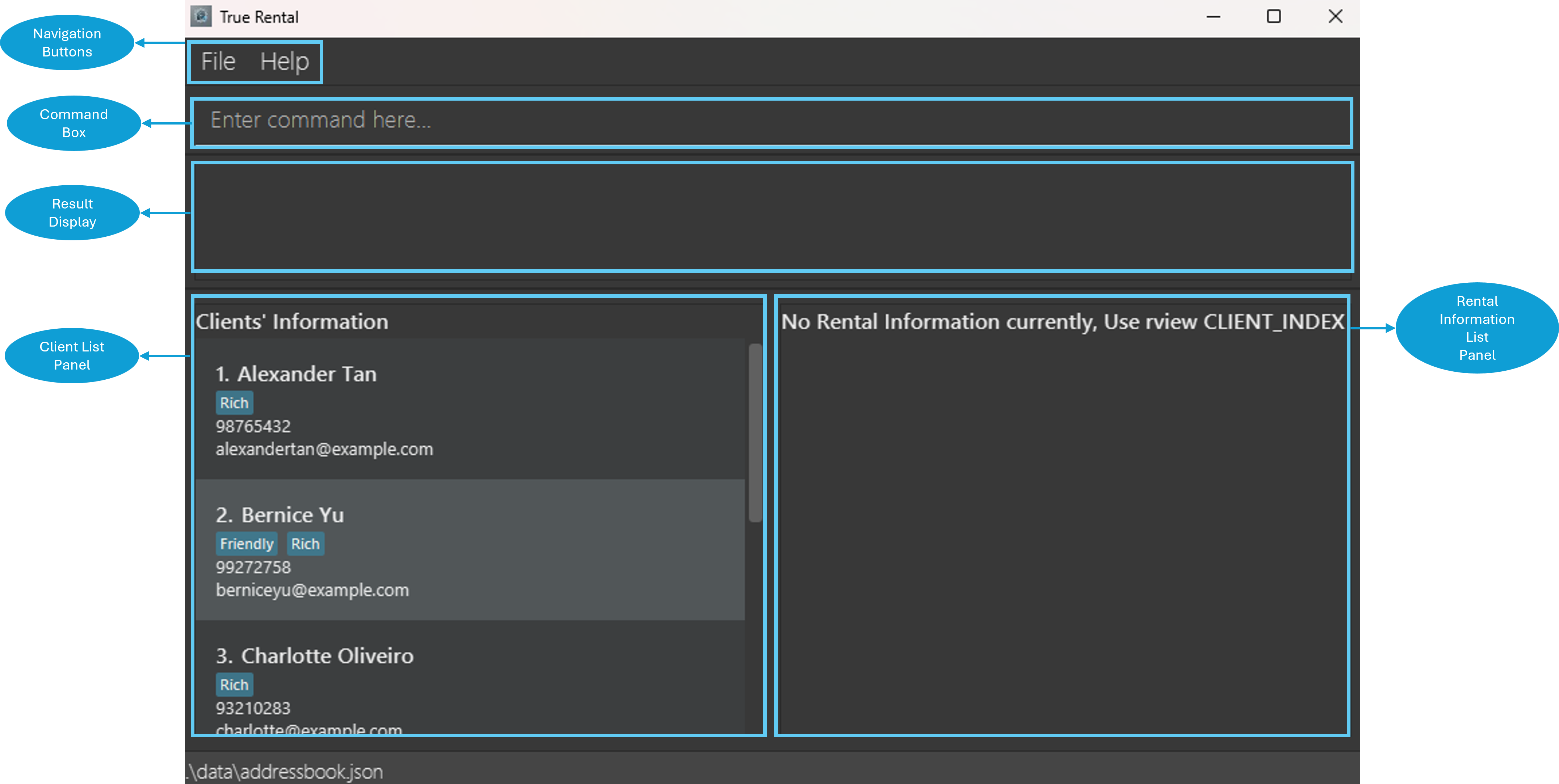
java -jar truerental.jarcommand to run the application. - Expected: A GUI similar to the image shown below should appear within a few seconds. The application will contain
some sample data.
- Download the latest
Shut down
- Click on the cross at the top of the application window.
- MacOS: Red cross button at the top-left of the application window.
- Windows / Linux: Red cross button at the top-right of the application window.
Expected: The application will exit and close safely.
- Enter
exitinto the command box of the application.
Expected: The application will exit and close safely.
- Click on the cross at the top of the application window.
Subsequent Launches
- Relaunch the application by
cdinto the respective folder with thetruerental.jarfile. - Use
java --versionto ensure your java version isJava 17. - Use
java -jar truerental.jarcommand to run the application. - Expected: The application should retain all changes made to the data within the application previously.
- Relaunch the application by
Saving window preferences
- Resize the window to an optimum size. Move the window to a different location. Close the window.
- Re-launch the app by typing
java -jar truerental.jar.
Expected: The most recent window size and location is retained.
Basic Usage
Adding a client
Adding a client while all clients are being shown.
Prerequisite: List all clients using the list command. Multiple clients in the list.
Please input this command cadd n/Alice Peng p/81239999 e/alicepeng@example.com to ensure that there is already a client with the name Alice Peng with phone number 81239999 and email address alicepeng@example.com.
Note: If the client already exist within the list, please continue with the test cases.
Test case 1: cadd n/John Doe p/99887766 e/johndoe@example.com
A new client is added, with the name John Doe, phone number 99887766, email address
johndoe@example.com. The details of the added client is shown in the result display box.
Test case 2: cadd n/Amy Tan p/99887766
A new client is added, with the name Amy Tan, phone number 99887766, without an email address. The
details of the added client is shown in the result display box.
Test case 3: cadd n/Beckham Lee e/beckhamlee@example.com
A new client is added, with the name Beckham Lee, email address beckhamlee@example.com, without a
phone number. The details of the added client is shown in the result display box.
Test case 4: cadd n/John Doe p/81234567 e/johndoe@test.com
A new client is added, with the name John Doe, phone number 81234567, email address
johndoe@test.com. The details of the added client is shown in the result display box.
Test case 5: cadd n/Alice Peng p/81239999 e/alicepeng@example.com
No new client is added, as there already exist the same client within the application from prerequisite. Error details will be displayed in the result display box.
Test case 6: cadd n/Charlie Peng
No new client is added, as a client is required to have at least one phone number or one email address. Error details will be displayed in the result display box.
Test case 7: cadd n/J@ckie Chan p/91112222 e/jackiechan@example.com
No new client is added, as the name contains invalid format. Error details will be displayed in the result display box.
Test case 8: cadd n/Jackie Chan p/#999$999 e/jackiechan@example.com
No new client is added, as the phone contains invalid format. Error details will be displayed in the result display box.
Test case 9: cadd n/Jackie Chan p/91112222 e/jackiechan@.com
No new client is added, as the email contains invalid format. Error details will be displayed in the result display box.
Test case 10: cadd
No new client is added, as there are no parameters provided. Error details will be displayed in the result display box.
Adding a client's rental information
Adding a client's rental information while all clients are being shown.
Prerequisite: List all clients using the list command and suppose 10 clients are displayed. Additionally, one of
the clients already has a rental information saved in the application with address of
Blk 321 Ang Mo Kio Ave 3, #09-123.
Note: Following test cases should be executed independently. You should delete the newly added rental information
after every test case.
Test case 1: radd 99 a/508 Bishan Street 11 #01-386
No rental information will be added to the client with index 99 as the client does not exist. Error details will be displayed in the result display box.
Test case 2: radd a/508 Bishan Street 11 #01-386
No rental information will be added as the index of client is not provided in the command. Error details will be displayed in the result display box.
Test case 3: radd 1 a/Blk 321 Ang Mo Kio Ave 3, #09-123
No rental information will be added as there already exist a rental with the same address. Error details will be displayed in the result display box.
Test case 4: radd 1 a/508 Bishan Street 11 #01-386
A rental information will be added to the client with index 1. The rental information added has address as
508 Bishan Street 11 #01-386; rental start date, rental end date, rental monthly payment date, monthly rent amount,
deposit amount and customers as — because they are not specified in the command.
Test case 5: radd 1 s/01/01/2024
No rental information will be added to the client with index 1 as address is not provided
(address is mandatory and must be provided). Error details will be displayed in the result display box.
Test case 6: radd 1 a/508 Bishan Street 11 #01-386 s/01/01/2024 e/30/06/2024
A rental information will be added to the client with index 1. The rental information added has address as
508 Bishan Street 11 #01-386, rental start date as 01 Jan 2024 and rental end date as 30 Jun 2024;
rental monthly payment date, monthly rent amount, deposit amount and customers as —
because they are not specified in the command.
Test case 7: radd 1 a/508 Bishan Street 11 #01-386 s/01-01-2024 and
radd 1 a/508 Bishan Street 11 #01-386 r/1 e/31-12-2024
No rental information will be added to the client with index 1 as rental start date and rental end date are required
to be in the form of dd/mm/yyyy. Error details will be displayed in the result display box.
Test case 8: radd 1 a/508 Bishan Street 11 #01-386 m/4000 d/8500
A rental information will be added to the client with index 1. The rental information added has address as
508 Bishan Street 11 #01-386, monthly rent amount as $4000 and deposit amount as $8500;
rental start date, rental end date, rental monthly payment date and customers as — because they are not specified
in the command.
Test case 9: radd 1 a/508 Bishan Street 11 #01-386 m/1000., radd 1 a/508 Bishan Street 11 #01-386 d/1000.,
radd 1 a/508 Bishan Street 11 #01-386 m/1000.0, radd 1 a/508 Bishan Street 11 #01-386 d/1000.0,
radd 1 a/508 Bishan Street 11 #01-386 m/1000.111, radd 1 a/508 Bishan Street 11 #01-386 d/1000.111,
radd 1 a/508 Bishan Street 11 #01-386 m/-1000 and radd 1 a/508 Bishan Street 11 #01-386 d/-1000
No rental information will be added to the client with index 1 as monthly rent amount and deposit amount are
required to be a positive integer (and including 0) and with exactly 2 decimal points if a decimal point is specified.
Error details will be displayed in the result display box.
Test case 10: radd 1 a/508 Bishan Street 11 #01-386 dd/20
A rental information will be added to the client with index 1. The rental information added has address of
508 Bishan Street 11 #01-386 and rental monthly payment date as 20; rental start date, rental end date,
monthly rent amount, deposit amount and customers as — because they are not specified in the command.
Test case 11: radd 1 a/508 Bishan Street 11 #01-386 dd/-1 and radd 1 a/508 Bishan Street 11 #01-386 dd/40
No rental information will be added to the client with index 1 as rental monthly payment date are required to be an
integer in the range of 1 to 31. Error details will be displayed in the result display box.
Test case 12: radd 1 a/508 Bishan Street 11 #01-386 cl/Steven;David
A rental information will be added to the client with index 1. The rental information added has address of
508 Bishan Street 11 #01-386 and customers as Steven;David; rental start date, rental end date, rental monthly
payment date, monthly rent amount and deposit amount as — because they are not specified in the command.
Test case 13: radd 1 a/508 Bishan Street 11 #01-386 cl/Steven, David;Jason Ong
A rental information will be added to the client with index 1. The rental information added has address of
508 Bishan Street 11 #01-386 and customers as Steven, David;Jason Ong; rental start date, rental end date,
rental monthly payment date, monthly rent amount and deposit amount as — because they are not specified in the
command. Note that Steven, David will be treated as one person, as we only recognize ; as the separator
for customers' names.
Test case 14: radd 1 a/508 Bishan Street 11 #01-386 cl/Steven;David; and
radd 1 a/508 Bishan Street 11 #01-386 cl/Steven;
No rental information will be added to the client with index 1 as single customer does not need the ; separator;
and for multiple customers, ; separator is used in between names to separate the names, ; should not be
added anywhere else. Error details will be displayed in the result display box.
Test case 15: radd 1 a/508 Bishan Street 11 #01-386 s/ e/ dd/ m/ d/ cl/
A rental information will be added to the client with index 1. The rental information added has address as
508 Bishan Street 11 #01-386; rental start date, rental end date, rental monthly payment date, monthly rent amount,
deposit amount and customers as —, because no values are specified after their respective prefix.
Viewing a client's rental information
Viewing a client's rental information while all clients are being shown.
Prerequisite: List all clients using the list command. Multiple clients in the list, with the respective rental information within each client.
Test case 1: rview 1
If the first client has rental information, displays the respective client's rental information in the rental information list panel. A command success message is displayed in the result display box.
Test case 2: rview 2
If the second client does not have rental information, no rental information will be displayed in the rental information list panel. A command success message is displayed in the result display box.
Test case 3: rview 0
No rental information is shown in the rental information list panel as 0 is an invalid index. Error details will be
displayed in the result display box.
Test case 4: rview x, where x is larger than the total number of clients.
No rental information is shown in the rental information list panel as x is an invalid index.
Error details will be displayed in the result display box.
Test case 5: rview
No rental information is shown in the rental information list panel as no index is provided. Error details will be displayed in the result display box.
Editing a client
Prerequisite: List all clients using the list command. Multiple clients in the list, with the first client
being named John Doe, with email address johndoe@example.com and phone number 99887766.
Test case 1: cedit 1 n/Peter Pan
The first client's name will be edited from John Doe to Peter Pan. A command success message is
displayed in the result display box.
Test case 2: cedit 1 p/91231231
The first client's phone number will be edited from 99887766 to 91231231. A command success message
is displayed in the result display box.
Test case 3: cedit 1 e/peterpan@example.com
The first client's email address will be edited from johndoe@example.com to peterpan@example.com. A
command success message is displayed in the result display box.
Test case 4: cedit 1 n/Peter Wang p/ e/
No client's information will be edited as a client must at least have a phone number or an email address. Error details will be displayed in the result display box.
Test case 5: cedit 0
No client's information will be edited as 0 is an invalid index. Error details will be displayed in the result display box.
Test case 6: cedit x, where x is larger than the total number of clients.
No client's information will be edited as x is an invalid index.
Error details will be displayed in the result display box.
Test case 7: cedit
No client's information will be edited as no index is provided. Error details will be displayed in the result display box.
Test case 8: cedit 2 n/Peter Pan p/91231231 e/peterpan@example.com
No client's information will be edited as there already exist the client with the name Peter Pan,
phone number 91231231 and email peterpan@example.com after test cases 1-3.
Error details will be displayed in the result display box.
Editing a client's rental information
Editing a client's rental information.
Prerequisite: List all clients using the list command and suppose 10 clients are displayed. The first client in
the list has one rental information with address as Blk 321 Ang Mo Kio Ave 3, #09-123, rental start date as
01 Apr 2018, rental end date as 31 Dec 2024, rental monthly payment date as 15,
monthly rent amount as $2500.00, deposit amount as $7500.00 and customers as Jackson;Yummi
Test case 1: redit 99 r/1 s/01/01/2024
No client's rental information will be edited as the client with index 99 does not exist. Error details will be displayed in the result display box.
Test case 2: redit 1 r/2 s/01/01/2024
No client's rental information will be edited as the client with index 1 (the first client) does not have a second rental information. Error details will be displayed in the result display box.
Test case 3: redit 1 r/1 a/729 Woodlands Circle #01-47
The first rental information of the first client will be edited, specifically address will be edited from
Blk 321 Ang Mo Kio Ave 3, #09-123 to 729 Woodlands Circle #01-47.
Test case 4: redit 1 r/1 a/
No client's rental information will be edited as address is mandated and cannot be empty for all rental information. Error details will be displayed in the result display box.
Test case 5: redit 1 r/1 s/01/01/2024 e/30/06/2024
The first rental information of the first client will be edited, specifically rental start date will be edited from
01 Apr 2018 to 01 Jan 2024 and rental end date will be edited from 31 Dec 2024 to 30 Jun 2024.
Test case 6: redit 1 r/1 s/01-01-2024 and redit 1 r/1 e/31-12-2024
No client's rental information will be edited as rental start date and rental end date are required to be in the form of
dd/mm/yyyy. Error details will be displayed in the result display box.
Test case 7: redit 1 r/1 m/4000 d/8500
The first rental information of the first client will be edited, specifically monthly rent amount will be edited from
$2500.00 to $4000.00 and deposit amount will be edited from $7500.00 to $8500.00.
Test case 8: redit 1 r/1 m/1000., redit 1 r/1 d/1000., redit 1 r/1 m/1000.0, redit 1 r/1 d/1000.0,
redit 1 r/1 m/1000.111, redit 1 r/1 d/1000.111, redit 1 r/1 m/-1000 and redit 1 r/1 d/-1000
No client's rental information will be edited as monthly rent amount and deposit amount are required to be a positive integer (and including 0) and with exactly 2 decimal points if a decimal point is specified. Error details will be displayed in the result display box.
Test case 9: redit 1 r/1 dd/20
The first rental information of the first client will be edited, specifically rental monthly payment date will be edited
from 15 to 20.
Test case 10: redit 1 r/1 dd/-1 and redit 1 r/1 dd/40
No client's rental information will be edited as rental monthly payment date are required to be an integer in the range of 1 to 31. Error details will be displayed in the result display box.
Test case 11: redit 1 r/1 cl/Steven;David
The first rental information of the first client will be edited, specifically customers will be edited from
Jackson;Yummi to Steven;David.
Test case 12: redit 1 r/1 cl/Steven, David;Jason Ong
The first rental information of the first client will be edited, specifically customers will be edited from
Jackson;Yummi to Steven, David;Jason Ong. Note that Steven, David will be treated as one person, as we only
recognize ; as the separator for customers' names.
Test case 13: redit 1 r/1 cl/Steven;David; and redit 1 r/1 cl/Steven;
No client's rental information will be edited as a single customer does not need the ; separator; and for multiple
customers, ; separator is used in between names to separate the names, ; should not be added anywhere else. Error
details will be displayed in the result display box.
Test case 14: redit 1 r/1 s/ e/ dd/ m/ d/ cl/
The first rental information of the first client will be edited, specifically rental start date, rental end date, rental
monthly payment date, monthly rent amount, deposit amount and customers will be edited from their respective value to
— (essentially set all the values back to "empty").
Listing all clients
Listing all clients within the application.
Prerequisite: There are already multiple clients within the application.
Test case 1: list
All clients will be displayed in the client list panel.
Find clients based on criteria
Find clients based on certain criteria such as name contains Amy, is tagged with Friends, etc.
Additionally, find clients whose details or rental information contains a keyword.
Prerequisite: List all clients using the list command. Suppose the list contains the following clients
Amy Tan; Phone: 98765432; Email: amytan@example.com; Tags: [Rich]Blk 321 Ang Mo Kio Ave 3, #09-123; Rental Start Date: 01 Apr 2018; Rental End Date: 31 Dec 2024; Rent Due Date: 15; Monthly Rent: $2500.00; Deposit: $7500.00; Customer List: Jackson;YummiBlk 112 Bishan Ave 5, #15-521; Rental Start Date: 01 Jan 2019; Rental End Date: 31 Dec 2026; Rent Due Date: 15; Monthly Rent: $2700.00; Deposit: $8100.00; Customer List: Ryan Low;MatthewBLK 2 Bishan; Rental Start Date: 01 Jan 2024; Rental End Date: 31 Dec 2024; Rent Due Date: 15; Monthly Rent: $2700.00; Deposit: $8100.00; Customer List: —
Bernice Yu; Phone: 99272758; Email: berniceyu@email.com; Tags: [Friends][Rich]Blk 321 Ang Mo Kio Ave 3, #09-123; Rental Start Date: 01 Apr 2018; Rental End Date: 31 Dec 2024; Rent Due Date: 15; Monthly Rent: $2500.00; Deposit: $7500.00; Customer List: Jackson;YummiBLK 1 Bishan; Rental Start Date: 01 Jan 2024; Rental End Date: 31 Dec 2024; Rent Due Date: 15; Monthly Rent: $2700.00; Deposit: $8100.00; Customer List: Amy Tan;David
Charlotte Oliveiro; Phone: 93210283; Email: charlotte@example.com; Tags: [Friends]Blk 8 Hougang Ave 10, #11-2411; Rental Start Date: 01 Dec 2021; Rental End Date: 31 Dec 2025; Rent Due Date: 15; Monthly Rent: $1500.00; Deposit: $4500.00; Customer List: Michelle
David Li; Phone: 91031282; Email: lidavid@example.com; Tags: [Friends]Irfan Ibrahim; Phone: 92492021; Email: irfan@email.com; Tags: [Colleagues]Roy Balakrishnan; Phone: 92624417; Email: royb@email.com; Tags: [Colleagues]
Test case 1: find k/Amy Tan
Clients whose details or rental information include the keyword Amy Tan will be displayed on the client list panel.
Command success message will be displayed in the result display box.
In this case, the clients Amy Tan and Bernice Yu will be displayed.
Test case 2: find n/Bernice
Clients whose name contain Bernice will be displayed on the client list panel.
In this case, only the client Bernice Yu will be displayed.
Test case 3: find e/@example.com
Clients whose email contain @example.com will be displayed on the client list panel.
In this case, the clients Amy Tan, Charlotte Oliveiro and David Li will be displayed.
Test case 4: find p/92492021
Clients whose phone number contain 92492021 will be displayed on the client list panel.
In this case, only the client Irfan Ibrahim will be displayed.
Test case 5: find t/Friends
Clients who are tagged with Friends will be displayed on the client list panel.
In this case, the clients Amy Tan, Bernice Yu, Charlotte Oliveiro and David Li will be displayed.
Test case 6: find t/Friend
No clients are tagged with Friend exactly.
Test case 7: find k/Yong Li
No client or rental information matches the keyword Yong Li.
Test case 8: find Amy
No prefix given. An invalid command will be shown in the result display box.
Test case 9: find k/
Keywords cannot be empty. An invalid command will be shown in the result display box.
Test case 10: find
No parameters given. An invalid command will be shown in the result display box.
Deleting a client
Deleting a client.
Prerequisites: List all clients using the list command. Multiple clients in the list.
Test case 1: cdelete 1
The app prompts for confirmation. Accepting the prompt with y causes the command to proceed, any other input cancels the command.
The first client is deleted from the list. Details of the deleted client will be displayed in the result display box.
Test case 2: cdelete 0
Client index cannot be 0. No client is deleted, and error details are displayed in the result display box.
Test case 3: cdelete x, where x is larger than the total number of clients.
Client index cannot be larger than the size of the displayed list. No client is deleted, and error details are displayed in the result display box.
Deleting a client's rental information
Deleting a client's rental information.
Prerequisites: List all clients using the list command. At least one client is in the list, and the first
client has at least one rental information.
Test case 1: rdelete c/1 r/1
The app prompts for confirmation. Accepting the prompt with y causes the command to proceed, any other input cancels the command.
The first rental information is deleted from the first client displayed in the list.
Details of the deleted rental information will be displayed in the result display box.
Test case 2: rdelete c/0 r/1
Client index cannot be 0. No rental information is deleted, and error details are displayed in the result display box.
Test case 3: rdelete c/x r/1, where x is larger than the total number of clients.
Client index cannot be larger than the size of the displayed list. No rental information is deleted, and error details are displayed in the result display box.
Test case 4: rdelete c/1 r/0
Rental index cannot be 0. No rental information is deleted, and error details are displayed in the result display box.
Test case 5: rdelete c/1 r/x, where x is larger than the number of rental information associated with the first client.
Rental index cannot be larger than the number of rental information in the client's list. No rental information is deleted, and error details are displayed in the result display box.
Test case 6: rdelete c/1
No rental index given. An invalid command error will be shown in the result display box.
Test case 7: rdelete r/1
No client index given. An invalid command error will be shown in the result display box.
Test case 8: rdelete
No parameter given. An invalid command error will be shown in the result display box.
Command History Feature
Retrieving previously entered commands.
Prerequisites: Below commands were previously entered.
cadd n/John Doe p/99887766 e/johndoe@example.comradd 1 a/BLK 1 Bishan s/01/01/2024 e/31/12/2024 dd/15 m/2700 d/8100 cl/Steven;Davidcadd n/Amy Tan p/99887766rview 1listcdelete 2
Test case (Steps 1 to 13 are performed sequentially):
Step 1: Press ↑ up-arrow key on the keyboard.
cdelete 2 is shown in the command box.
Step 2: Press ↑ up-arrow key on the keyboard.
list is shown in the command box.
Step 3: Press ↑ up-arrow key on the keyboard.
rview 1 is shown in the command box.
Step 4: Press ↑ up-arrow key on the keyboard.
cadd n/Amy Tan p/99887766 is shown in the command box.
Step 5: Press ↑ up-arrow key on the keyboard.
radd 1 a/BLK 1 Bishan s/01/01/2024 e/31/12/2024 dd/15 m/2700 d/8100 cl/Steven;David is shown in
the command box.
Step 6: Press ↑ up-arrow key on the keyboard.
cadd n/John Doe p/99887766 e/johndoe@example.com is shown in the command box.
Step 7: Press ↑ p-arrow key on the keyboard.
cadd n/John Doe p/99887766 e/johndoe@example.com is still shown in the command box, because there
are no more previous commands.
Step 8: Press ↓ down-arrow key on the keyboard.
radd 1 a/BLK 1 Bishan s/01/01/2024 e/31/12/2024 dd/15 m/2700 d/8100 cl/Steven;David is shown in
the command box.
Step 9: Press ↓ down-arrow key on the keyboard.
cadd n/Amy Tan p/99887766 is shown in the command box.
Step 10: Press ↓ down-arrow key on the keyboard.
rview 1 is shown in the command box.
Step 11: Press ↓ down-arrow key on the keyboard.
list is shown in the command box.
Step 12: Press ↓ down-arrow key on the keyboard.
cdelete 2 is shown in the command box.
Step 13: Press ↓ down-arrow key on the keyboard.
Nothing is shown in the command box.
Autofill Commands Feature
- Autofill command name.
Prerequisites: The input command is empty and user is trying to enter the command.
Test case (Steps 1 to 6 are performed sequentially):
Step 1: Enter r as the input command.
Value of the input command is now r.
Step 2: Press Tab key on the keyboard.
Value of the input command changes from r to radd.
Step 3: Press Tab key on the keyboard.
Value of the input command changes from radd to redit.
Step 4: Press Tab key on the keyboard.
Value of the input command changes from redit to rdelete.
Step 5: Press Tab key on the keyboard.
Value of the input command changes from rdelete to rview.
Step 6: Press Tab key on the keyboard.
Value of the input command changes from rview to radd.
- Autofill parameter prefix for a command.
Prerequisites: The input command is empty and user is trying to enter the command.
Test case (Steps 1 to 9 are performed sequentially):
Step 1: Enter radd as the input command.
Value of the input command is now radd (Take note of the whitespace at the end of the input).
Step 2: Press Tab key on the keyboard.
Value of the input command changes from radd to radd a/.
Step 3: Press Tab key on the keyboard.
Value of the input command changes from radd a/ to radd cl/.
Step 4: Press Tab key on the keyboard.
Value of the input command changes from radd cl/ to radd d/.
Step 5: Press Spacebar key on the keyboard.
Value of the input command changes from radd d/ to radd d/ (Take note of the whitespace at the end of the input).
Step 6: Press Tab key on the keyboard.
Value of the input command changes from radd d/ to radd a/.
Step 7: Enter 1075 Eunos Avenue 6 #01-171 at the end of the input command.
Value of the input command changes from radd a/ to radd a/1075 Eunos Avenue 6 #01-171 (Take note of the whitespace
at the end of the input).
Step 8: Press Tab key on the keyboard.
Value of the input command changes from radd a/1075 Eunos Avenue 6 #01-171 to
radd a/1075 Eunos Avenue 6 #01-171 a/.
Step 9: Press Tab key on the keyboard.
Value of the input command changes from radd a/1075 Eunos Avenue 6 #01-171 a/ to
radd a/1075 Eunos Avenue 6 #01-171 cl/.
- Autofills value for parameter.
Prerequisites: The input command is empty and user is trying to enter the command. Note that autofill values are shared across all parameters and only applicable when there is no value for prefix yet.
Test case (Steps 1 to 9 are performed sequentially):
Step 1: Enter redit cl/J as the input command.
Value of the input command is now redit cl/J.
Step 2: Press Tab key on the keyboard.
Value of the input command changes from redit cl/J to redit cl/Josh.
Step 3: Press Tab key on the keyboard.
Value of the input command changes from redit cl/Josh to redit cl/Joshua.
Step 4: Press Tab key on the keyboard.
Value of the input command changes from redit cl/Joshua to redit cl/Jayden.
Step 5: Press Spacebar key on the keyboard.
Value of the input command changes from redit cl/Jayden to redit cl/Jayden (Take note of the whitespace at the end
of the input).
Step 6: Enter a/B at the end of the input command.
Value of the input command changes from redit cl/Jayden to redit cl/Jayden a/B.
Step 7: Press Tab key on the keyboard.
Value of the input command changes from redit cl/Jayden a/B to redit cl/Jayden a/Block.
Step 8: Press Tab key on the keyboard.
Value of the input command changes from redit cl/Jayden a/Block to redit cl/Jayden a/Blk.
Step 9: Press Tab key on the keyboard.
Value of the input command changes from redit cl/Jayden a/Blk to redit cl/Jayden a/BLOCK.
Sort all clients by name
Sorting the entire True Rental's database by name.
Prerequisites: List all clients using the list command. Multiple clients in the list.
Test case 1: sort
Client list will be sorted in alphabetical order by name. A command success message for name will be displayed in the result display box.
Clear
Clearing the entire True Rental's database, wiping all clients and their respective rental information (if any).
Test case 1: clear
Both client list panel and rental information list panel will be empty with all data being cleared. A command success message will be displayed in the result display box.
Exit
Safely exiting TrueRental application.
Prerequisites: Run the application
Test case 1: exit
The application will exit and be closed safely.
Duplicate Client Detection and Handling
A client is only considered as duplicate if and only if all three parameters NAME, PHONE_NUMBER
and EMAIL_ADDRESS are exactly the same (including case sensitivity).
This is to allow the user to have a greater flexibility of manipulating the client's information.
For example: All the clients stated below the initial client are NOT CONSIDERED as duplicates.
An initial client with the name Jason Lee, phone number 91231231 and email address jasonlee@example.com
The following are NOT DUPLICATES of the initial client:
- A client with the name
Jason Lee, phone number99998888and email addressjasonlee@example.com. - A client with the name
Jason Lee, phone number91231231and email addressNOTjasonlee@example.com. - A client with the name
Jason Lee, phone number—and email addressjasonlee@example.com. - A client with the name
Jason Lee, phone number91231231and email address—. - A client with the name
JASON LEE, phone number91231231and email addressjasonlee@example.com.
Note: — signifies an empty parameter without any characters.
The following is a DUPLICATE of the initial client:
- A client with the name:
Jason Lee, phone number:91231231and email addressjasonlee@example.com.
Duplicate Rental Information Detection and Handling
Rental information is considered a duplicate if and only if the ADDRESS parameter is exactly the same, including case sensitivity.
This is to allow you to have a greater flexibility of manipulating the rental information.
For example:
An initial rental information with the address 201 Bukit Batok Street 21 #10-163, rental start date 01/01/2024 and monthly rent amount 3200. The values for rental end date, rent due date, deposit amount, and customer list are unspecified.
The following are NOT DUPLICATES of the initial rental information:
- Rental information with the address
201 BUKIT BATOK STREET 21 #10-163, rental start date01/01/2024and monthly rent amount3200. The values for rental end date, rent due date, deposit amount, and customer list are unspecified (as—). - Rental information with the address
201 BUKIT Batok Street 21 #10-163, rental start date01/01/2024and monthly rent amount3500. The values for rental end date, rent due date, deposit amount, and customer list are unspecified (as—). - Rental information with the address
201 Bukit BATOK Street 21 #10-163, rental start date01/01/2024, monthly rent amount3200and rental end date31/12/2024. The values for rent due date, deposit amount, and customer list are unspecified (as—). - Rental information with the address
201 BuKiT BaToK StReEt 21 #10-163, rental start date01/01/2024, monthly rent amount3200, rental end date31/12/2024, rent due date10. The values for deposit amount and customer list are unspecified (as—). - Rental information with the address
201 bukit batok street 21 #10-163, rental start date01/06/2024and monthly rent amount3200. The values for rental end date, rent due date, deposit amount, and customer list are unspecified (as—).
The following are DUPLICATES of the initial rental information:
- Rental information with the address
201 Bukit Batok Street 21 #10-163, rental start date01/02/2024and monthly rent amount3300. The values for rental end date, rent due date, deposit amount, and customer list are unspecified. - Rental information with the address
201 Bukit Batok Street 21 #10-163and rental start date01/12/2024. The values for monthly rent amount, rental end date, rent due date, deposit amount, and customer list are unspecified.
Appendix: Future Enhancements
1. Additional Parameter Constraints
| Parameter | Description | Additional Constraints | Examples |
|---|---|---|---|
NAME | The client's name. | Accommodate special characters in names, which includes, but not limited to / , ', ., ;. | Ravi S/O Ramasamy |
PHONE_NUMBER | The client's phone number. | Accommodate country code, which includes, but not limited to +65 and limit to a certain number of characters such as 8 characters only for Singapore numbers. | 98765421 |
EMAIL | The client's email address. | Accommodate well-established email companies only. | test@gmail.com |
TAG | The tags associated with the client. | Limit up to 20 characters. | 12345678901234567890 |
ADDRESS | The address of the property owned by the client. | Limit up to 150 Unicode characters. | 18 Kaki Bt Rd 3 #05-16 Entrepreneur Business Centre S(415978), Singapore |
MONTHLY_RENT | The monthly rent amount for the property owned by the client. | Restrict the value to the maximum representable value of a Double in Java. | 999999999999 |
DEPOSIT | The security deposit amount for the property owned by the client, paid by the tenant at the start of the lease. | Restrict the value to the maximum representable value of a Double in Java. | 999999999999 |
CUSTOMER_LIST | The name(s) of the tenant(s) for the property owned by the client. | Limit the usage of the ; separator to 49 occurrences, which can accommodate up to 50 names in total. | Alice;Bob;Charlie;David;Ella;Fiona;Geoge;Helen |
2. cedit Command
The current version of cedit only supports replacing all tags with the updated tag provided by the cedit
command.
In the future, there will be an update to the cedit command, where the user is able to choose which tag to retain as well as which tag to edit.
3. redit Command
The current version of redit only supports replacing existing value to the newly specified value for all parameters used in redit.
In the future, there will be an update to the redit command, where the user is able to choose whether to edit from the existing value or simply replace the existing value, offering greater convenience.
4. sort Command
The current version of sort is case-sensitive.
In the future, there will be an update to the sort command, where the sorting will be case-insensitive.
5. RENT_DUE_DATE Parameter
The current RENT_DUE_DATE meant to refer to the specific day (of the month) on which the rent payment is due for the property owned by the client. However, the term DATE may be misleading, as users might assume it requires the format dd/mm/yyyy.
In the future, there will be an update to the RENT_DUE_DATE parameter, where it will be renamed to RENT_DUE_DAY for greater clarity.
6. Error Message For Invalid Value Of MONTHLY_RENT Parameter
The current error message for an invalid value of MONTHLY_RENT is: Monthly Rent should only contain numbers, and in 2 decimal places if needed. This message may be misleading, as the term numbers is too vague.
In the future, there will be an update to the error message for invalid value of MONTHLY_RENT, where it will be rephrased to Monthly Rent should only contain positive numbers (including 0, with no leading zeroes), and be formatted with exactly 2 decimal places if needed for greater clarity.
7. Error Message For Invalid Value Of DEPOSIT Parameter
The current error message for an invalid value of DEPOSIT is: Deposit should only contain numbers, and in 2 decimal places if needed. This message may be misleading, as the term numbers is too vague.
In the future, there will be an update to the error message for invalid value of DEPOSIT, where it will be rephrased to Deposit should only contain positive numbers (including 0, with no leading zeroes), and be formatted with exactly 2 decimal places if needed for greater clarity.
8. Duplicate Rental Information Detection
Currently, rental information is considered a duplicate if and only if the ADDRESS parameter matches exactly, including case sensitivity. However, this approach may not be ideal as unique identifiers such as unit numbers can differentiate addresses that are otherwise the same.
In the future, there will be an update to the duplicate rental information detection method, where rental information will be considered a duplicate if and only if the ADDRESS parameter matches (case-insensitively).
9. Handling Long Text In The UI
Currently, some long texts are truncated due to the window size constraints of the application, with excess text displayed as ....
In the future, there will be an update to the UI and additional constraints on the parameter value. The UI will be updated such that all characters will be fully displayed without truncation or the use of ....
10. Storage Related Error Handling
In some very rare cases, reading from or writing to data file may fail due to various reasons. In the future, there will be an update to the application, where a prompt will be displayed to notify the user of such failures.